macOS utility app

Activity Monitor tells you
what happened.
PIDKill fixes it.

Auto-monitor and kill unwanted processes in the background. Set your targets once — PIDKill handles the rest.
macOS 12+ · Apple Silicon & Intel · 3-day free trial

PIDKill — Monitoring 4 targets
pidkill > Scan started. Monitoring 4 targets...
14:32:07 found com.apple.CoreSimulator pid:4821 mem:4.2GB
14:32:07 killed com.apple.CoreSimulator +4.2GB freed
14:32:09 found Google Chrome Helper pid:5102 mem:1.8GB
14:32:09 found Google Chrome Helper pid:5103 mem:920MB
14:32:09 killed Google Chrome Helper (×2) +2.7GB freed
14:32:15 found mdworker_shared pid:5340 mem:380MB
14:32:15 killed mdworker_shared +380MB freed — Total: 7.3GB recovered

One app. Every angle.

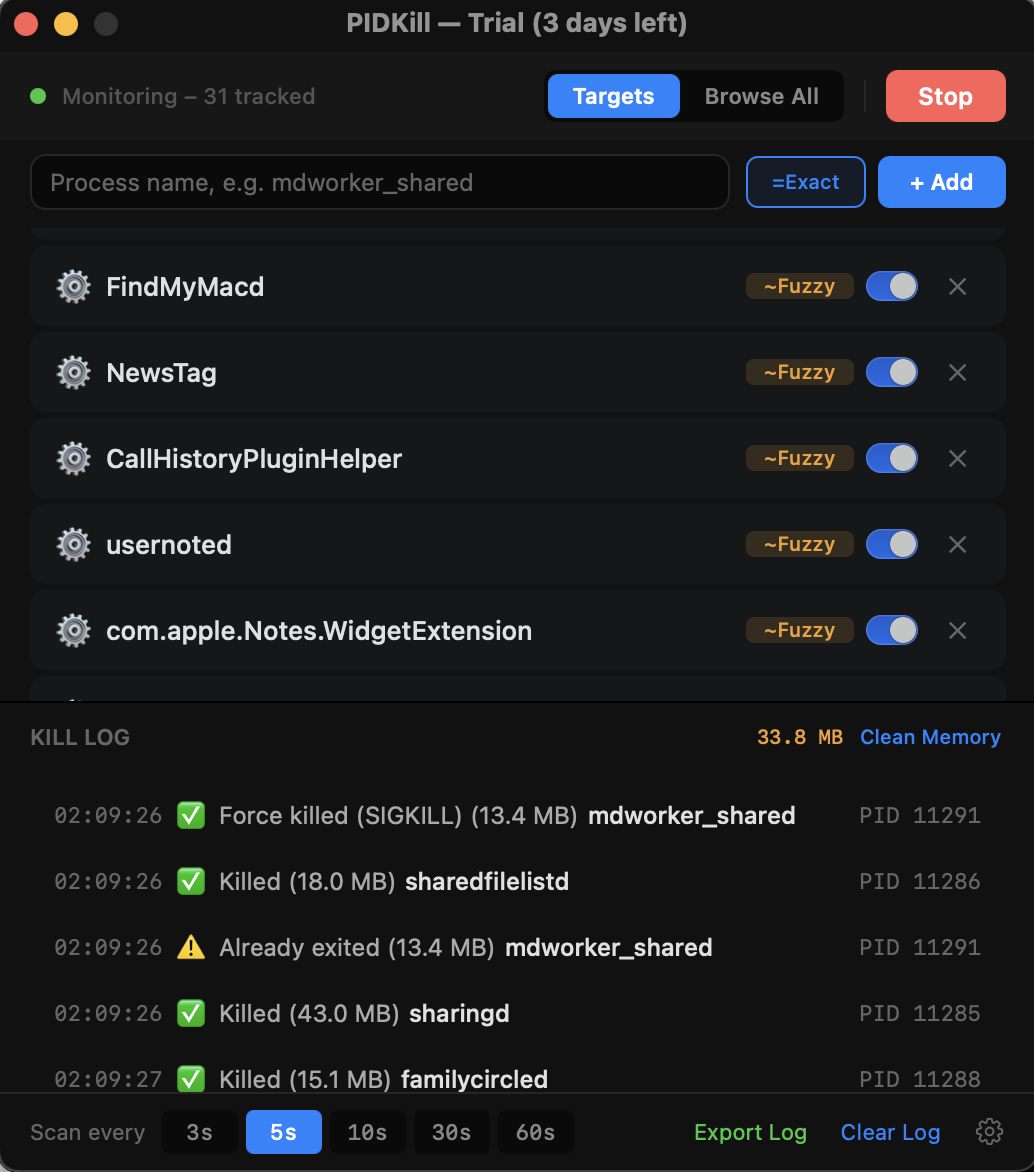
Targets view
01Monitor
Set Targets. Auto Kill.
Add processes with fuzzy or exact match. Toggle on/off. Kill log tracks every action with timestamps and memory freed.
Fuzzy Match
Auto Kill
Kill Log
Core
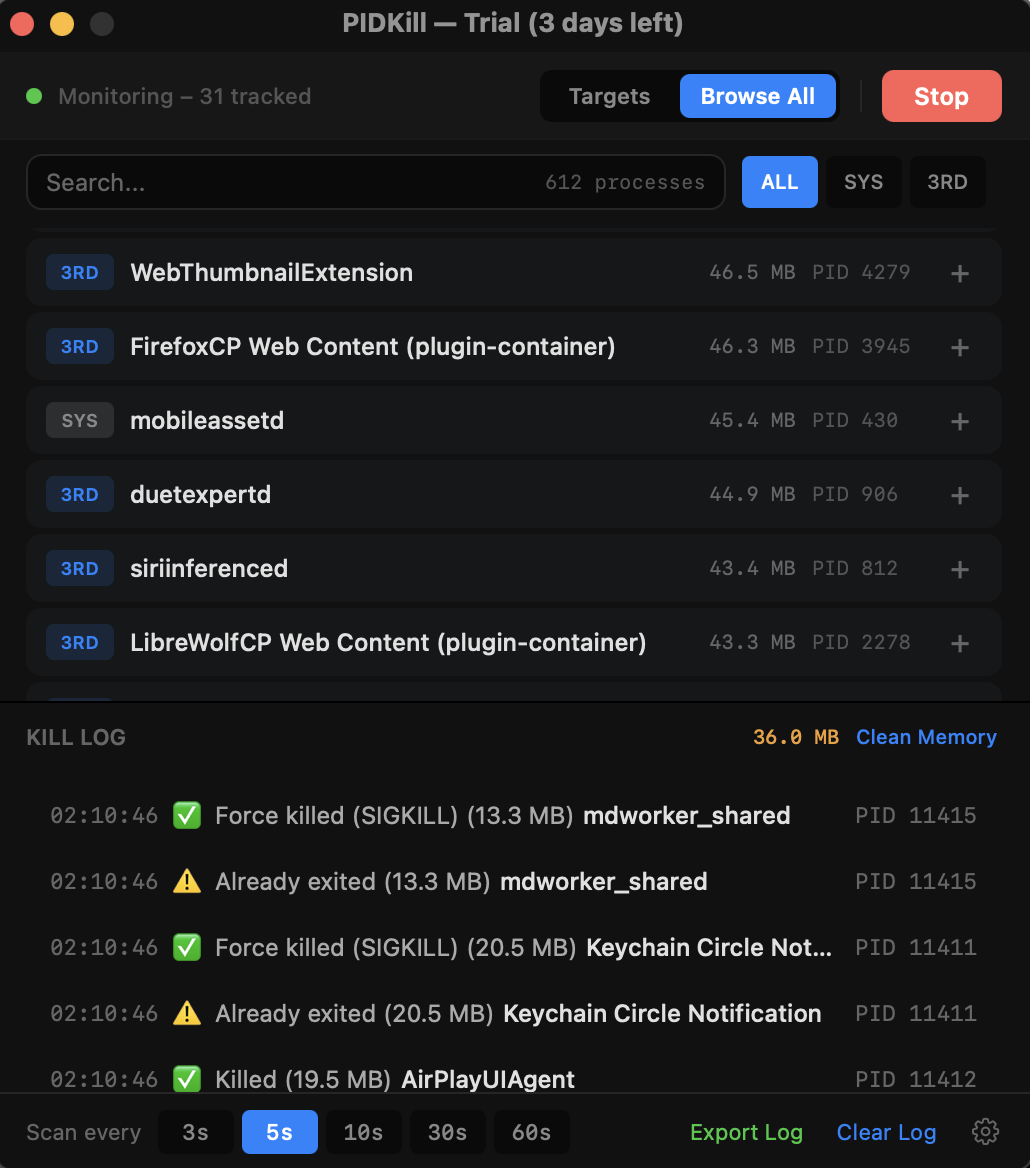
Browse all view
02Browse
Every Process. One View.
Every running process sorted by memory. See PID, origin, and resource usage. Click + to add to targets.
Memory Sort
One-Click Add
Live Search
Browse
SYS filter view
03Filter
ALL. SYS. 3RD.
One-click origin filter. Instantly separate system from third-party. Know what's safe to kill.
ALL View
SYS Only
3RD Only
Filter
Settings menu
04Configure
Your Language. Your Config.
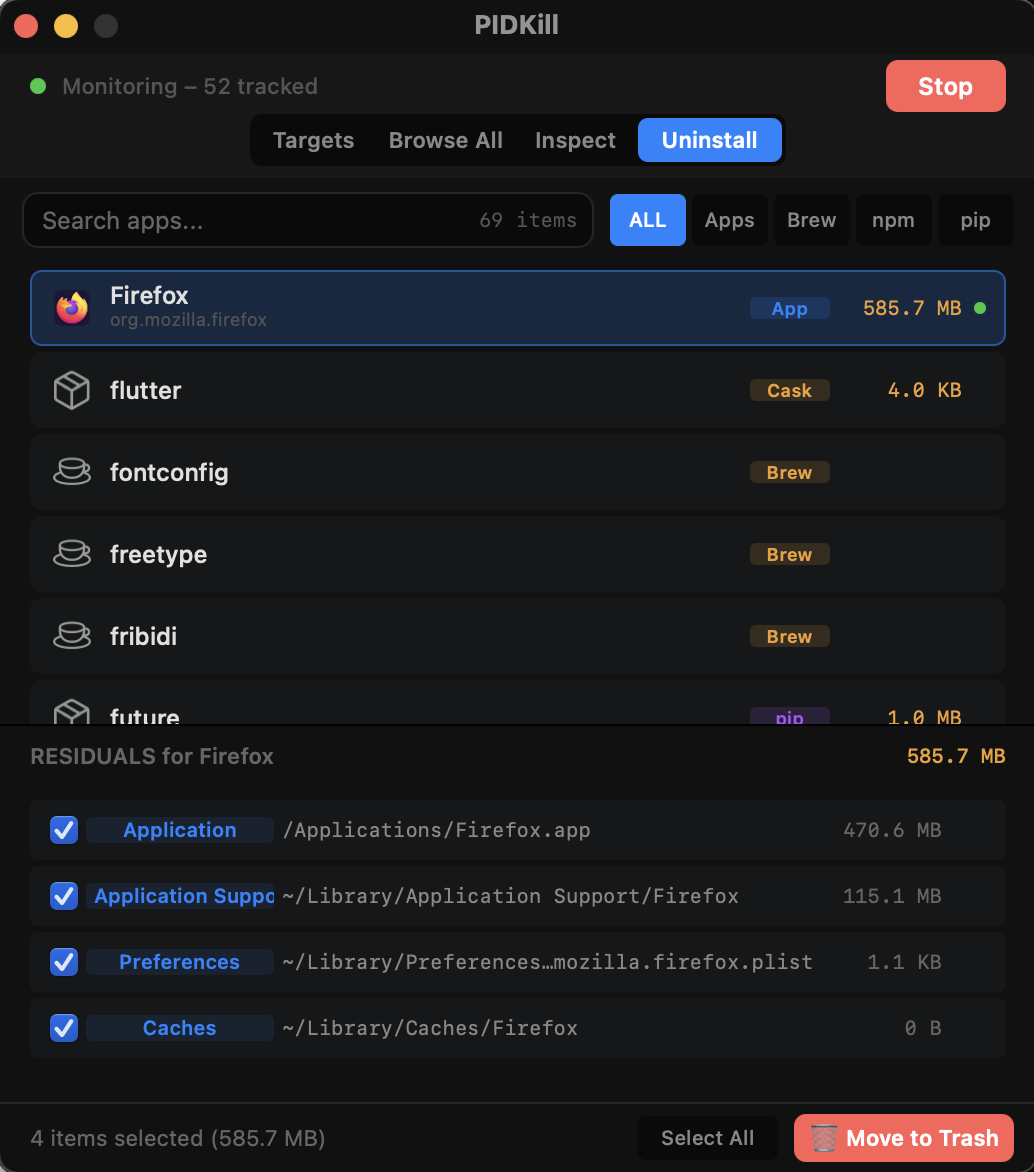
5 languages, launch at login, export/import targets as JSON. Share with teammates or migrate to a new Mac.
5 Languages
Import/Export
Auto Launch
Settings

You already know Activity Monitor
isn't built for this.

Activity Monitor

System diagnostic tool

  • × Open Spotlight → search → wait for load → find process → confirm kill → done. 30 seconds.
  • × Process names don't match app names. Which "python3" is yours?
  • × No memory. You hunt the same zombie processes every single day.
  • × Kill one at a time. 47 Chrome helpers? Good luck.
  • × No auto-monitoring. You're the monitor.

PIDKill

Precision process killer

  • Open PIDKill. See targets. One click kills. 2 seconds.
  • Fuzzy search matches executable names, localized names, and paths.
  • Set your targets once. PIDKill remembers and auto-scans.
  • Kill all matching processes at once. Batch operations.
  • Continuous monitoring. Scan every 1–10 seconds, configurable.

Sound familiar?

iOS Developer
The Xcode Zombie Hunter

Xcode crashed. Again. But the Simulator is still running — CoreSimulatorService is hogging 4GB. You open Activity Monitor, find 5 related processes, kill them one by one... oops, you just killed a system service. Now Bluetooth is dead too.

PIDKill: Add "Simulator" to targets. One click clears all residuals. 3RD/SYS labels prevent accidental system kills. 2 seconds.
Full-Stack Engineer
The Chrome Memory Vampire

3 PM. Fans spinning. 47 Chrome Helper processes in Activity Monitor. Which ones are your important tabs? Which are background extensions? No idea. Force-quit Chrome? Sure — but that half-written form? Gone.

PIDKill: Sort Chrome helpers by memory. Surgically kill the memory hogs, keep your tabs alive. Scalpel, not sledgehammer.
Backend / DevOps
The Docker Ghost Process

docker-compose down finished, but port 8080 is still in use. A zombie node process didn't die. And there's one on 8081. And a redis-server on 6379... 5 minutes/day × 365 = a full day lost per year. Just killing processes.

PIDKill: Add docker, node, redis to scan list. See all residuals in one view, clear with one click. 5 min → 2 sec.
UI/UX Designer
The Adobe Hostage Situation

You quit Photoshop but 7 Adobe daemons are still running — CCXProcess, AdobeIPCBroker, CoreSync... Kill one in Activity Monitor? Another respawns it. They're protecting each other.

PIDKill: Monitor all Adobe processes. Kill them in the right order so they stay dead. Finally, silence.
Frontend Developer
The Port Conflict Firefighter

Port 3000 is already in use. Again. The last project's dev server didn't shut down. You switch between 3–4 projects daily — node, vite, webpack residuals everywhere. Every switch is a mini crisis.

PIDKill: Add dev server processes to scan list. One click before switching projects. Port conflicts? Eliminated.
Sysadmin / Power User
The Unkillable Respawner

You kill Creative Cloud. It restarts in 3 seconds. Kill it again. Back again. Some daemons have watchdogs that respawn them the moment they die. Activity Monitor is useless — you can't click fast enough.

PIDKill: Scan every 5 seconds. The process respawns? PIDKill kills it again. Automatically. Persistently. You win the war of attrition.
Team Lead / IT Admin
The Config Handoff

New hire joins. You know exactly which bloatware processes to kill on a dev machine — but explaining it takes 30 minutes. Or they get a new Mac and have to set everything up again from scratch.

PIDKill: Export your target list as JSON. New teammate imports it in 2 seconds. Same setup, zero guesswork. Works for migration too.
Mac User
The "Is It Safe to Kill?" Dilemma

613 processes running. You want to free up memory but you're terrified of killing something important. Which ones are system? Which are third-party? Activity Monitor doesn't tell you.

PIDKill: One-click filter — ALL, SYS, or 3RD. Instantly see what's yours vs what's macOS. Browse by memory usage, kill with confidence.

Everything you need.
Nothing you don't.

Auto Scan & Kill

Set target processes. PIDKill continuously scans and kills them as they appear. Configurable intervals: 3s, 5s, 10s, 30s, 60s.

Fuzzy Matching

Match by executable name, localized display name, or path. Find "AirDrop" by typing its Japanese name. No more guessing.

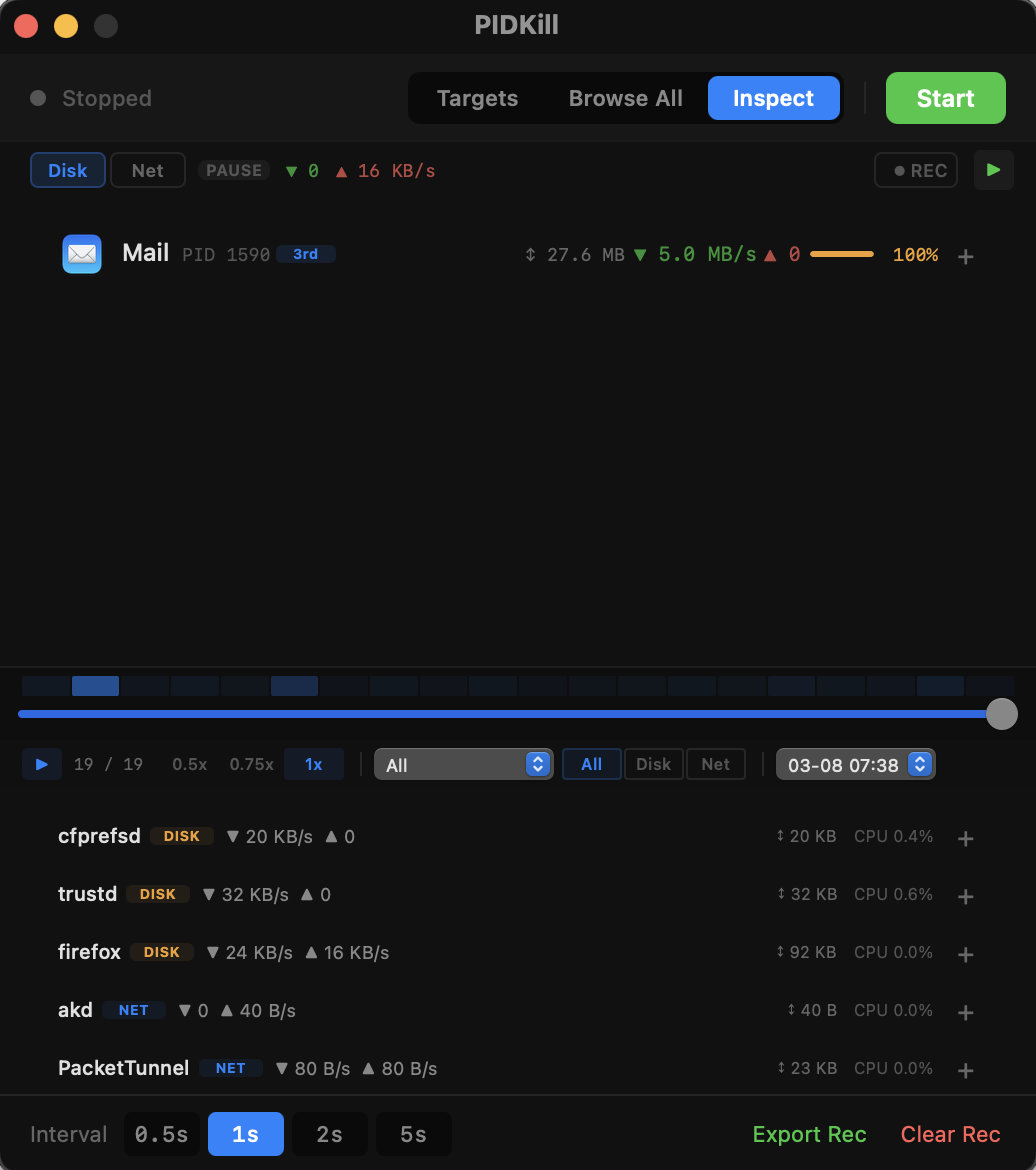
Process Browser

Browse all running processes with full details — PID, memory, origin, path. Add any process to your target list in one click.

Kill Log & Export

Complete history of every killed process with timestamps. Export logs as CSV for auditing or troubleshooting.

Memory Cleanup

One-click memory cleanup for PIDKill itself. Lean and efficient — uses minimal resources running in the background.

🌐

5 Languages

English, Japanese, Korean, Traditional & Simplified Chinese. Switch in-app anytime. Localized process names included.

Background Auto-Kill

Launch at login, minimize to background. PIDKill silently monitors and kills target processes 24/7 — no manual intervention needed.

Export & Import Targets

Save your target list as JSON. Share with teammates, migrate to a new Mac, or back up your config. One-click restore.

ALL / SYS / 3RD Filter

Instantly filter all processes by origin. See only third-party apps, only system processes, or everything. No more guessing what's safe to kill.

Three steps. Two seconds.

01

Add your targets

Type a process name or browse running processes. Add to your kill list with one click. Supports fuzzy & exact match.

02

Hit Start

PIDKill scans at your chosen interval. When a target process appears, it's killed immediately. No confirmation dialogs.

03

Forget about it

PIDKill remembers your targets across reboots. Launch at login, and it just works quietly in the background. Forever.

One price. No subscriptions.
No nonsense.

$3.99
One-time purchase. Yours forever.
  • All features unlocked
  • Unlimited target processes
  • Free updates
  • Export & import your config
  • macOS 12 Monterey and later
  • Apple Silicon & Intel native
Download Free Trial

3-day free trial · No credit card required